Property Operations
With the Property Operations tool (prepare > Surfaces > Tools > Property Operations) you can perform surface-to-surface property operations based on a function. You can choose from a range of basic functions, i.e. arithmetic, stochastic, exchange, exclude and intersect/union functions. All functions (except one that makes use of a boundary) require two input properties (Property A and B) which must be of the same property type (e.g. 'Depth', 'Porosity', 'Temperature') and must be property of a 2D grid, tri-mesh, polyline set, point set or marker for Property A, and either a constant value or a property of a 2D grid or tri-mesh for Property B. The input properties must be stored in one of the following folders: Imports, Data, Surface Sets Seismic Interpretation or Marker Set folder.
There are thee options to generate the output property. Note that Property A is leading, i.e. it receives/determines the output:
- Create New Object will create a new event of the same type and with the same surface representation as Property A.
- Create New Property will create a new property for the representation of Property A.
- Overwrite Property will overwrite Property A with the output property.
See image below for a more visual explanation.
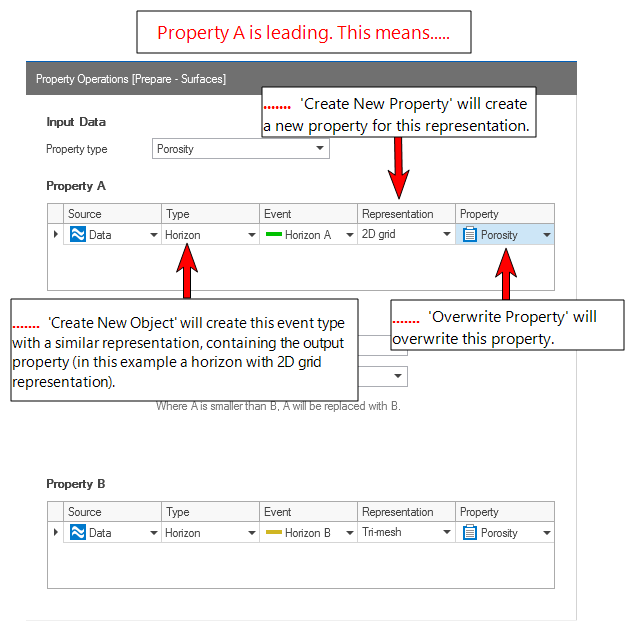
The Property Operations form. Most functions require two properties as input, i.e. Property A and B. Property A is leading which means that the output is applied to (the representation of) Property A. When you create an entirely new object for your output property, it will be a similar representation type as the representation type of Property A. click to enlarge
The Property Operations tool can be used in an automated script generated with the JewelScript Editor. See the below example, where the tool is used in association with the Property Interpolation workflow to clean up the input data (in this case, porosity from seismic inversion) within a boundary polygon (function type 'Exclude where') after which a re-interpolation takes place incorporating well data.
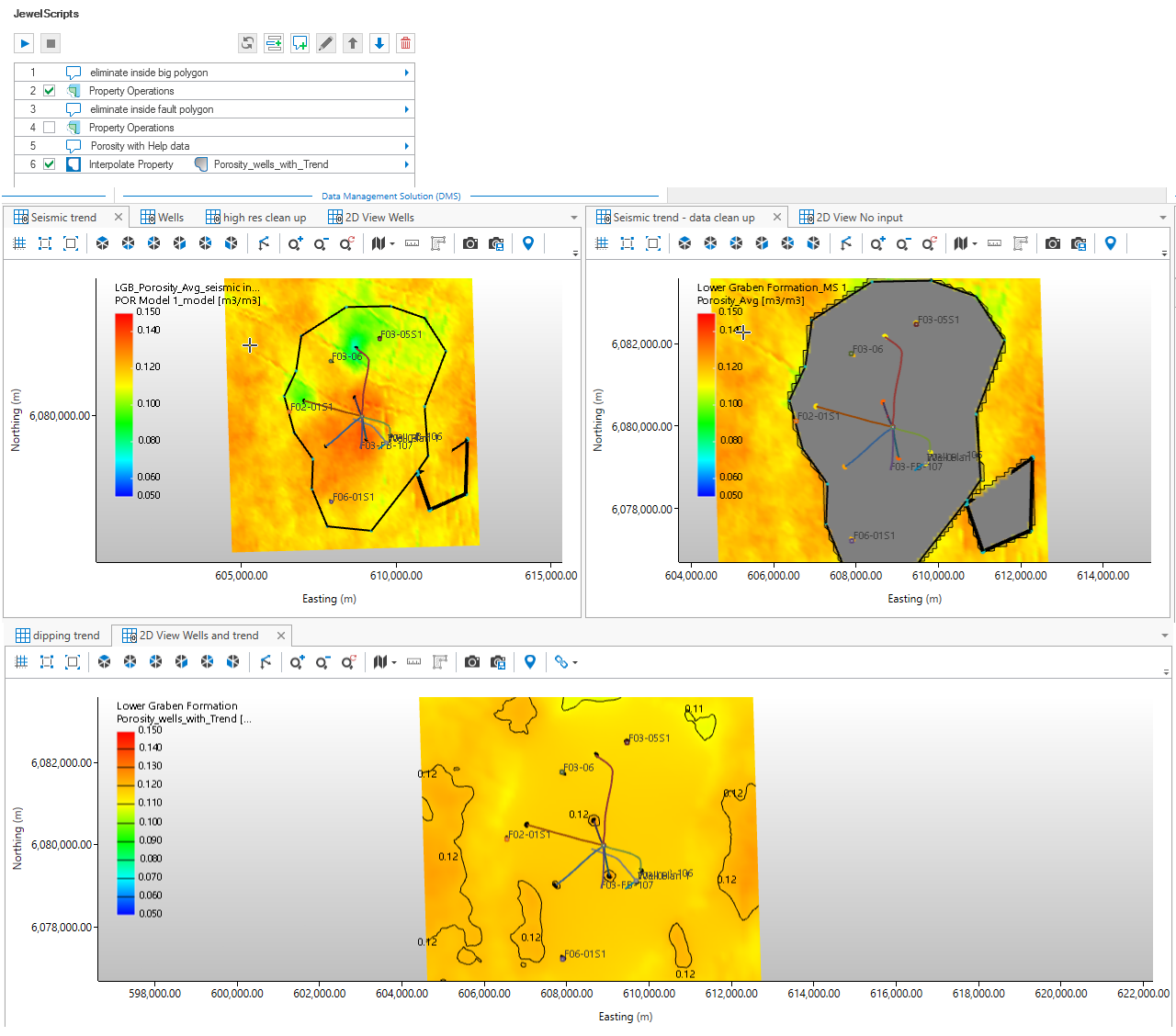
Example of using the Property Operations tool in association with the Property Interpolation workflow in an automated JewelScript. The input data to the property interpolation (in this case, porosity from seismic inversion) is cleaned within a boundary polygon (function 'Exclude where' on the Property Operations tool) after which a re-interpolation takes place incorporating well data. click to enlarge
Function types
To perform an operation, you can choose from five types of functions. Each function type contains a range of functions.
Arithmetic functions Various basic arithmetic functions with Property A and B as input (e.g. A+B, A/B, etc.).
'Exchange where' functions Various functions where Property A and B are compared and exchanged with one another according to the function (e.g. replace A with B where A>B).
'Exclude where' functions
Property values of Property A become undefined (or absent) when they meet the function criteria. This can be either a boundary, or a second property:
- Using a boundary: The values of Property A become undefined or absent inside or outside the chosen boundary. The boundary needs to consist of one or more closed polylines (i.e. polygons).
- Using a second property: Functions where the values of Property A and B are compared and A becomes undefined or absent according to the function (e.g. exclude Property A where A>B).
Intersect/Union functions Various functions where the presence (not the values) of property A and B determines if Property A and B are maintained or set to undefined (or absent). Note that the 'Unite' functions only merge both representations when the property is 'Depth', else the outcome of the operation is limited to the representation of Property A.
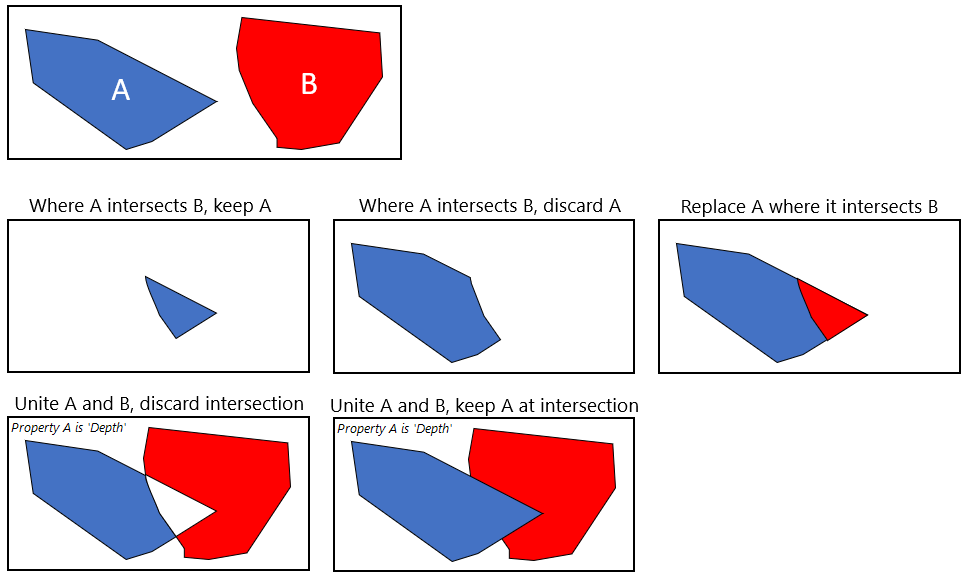
Graphic representation of the Intersect/Union functions. Note that for the two 'Unite' functions (i.e. 'Unite A and B, discard intersection' and 'Unite A and B, keep A at intersection'), a merge as visualized in the image only happens when Property A is 'Depth', else, the result of the unite functions is limited to the representation of Property A. click to enlarge
Stochastic functions Two functions where Property A is randomly sampled from Gaussian or normal probability distributions defined by Property A and B.
Rules and recommendations when performing a property operation
- The representation type of Property A and B does not need to be the same, e.g. you can use a 2D grid for Property A and tri-mesh for Property B.
- Supported data sources for input properties are: Imports, Data, Surface Sets, Marker Set and Seismic Interpretation folders.
- A property operation can only be applied to one property at the time.
- Properties with multiple realizations or time-steps are not allowed as input.
Special notes on property 'Depth'
The 'Depth' property is a so-called 'default geometry property', which means it exists by default for any geometric representation. This means when you use the 'Depth' property in a property operation, there are some special rules and limitations:
- When Property A is 'Depth' and you use an Intersect/Union function in combination with 'Create New Object', Property B needs to be 'Depth' as well.
- When the output property is 'Depth' you cannot use the operation 'Create New Property' and use 'Depth' as a name, because a representation cannot have a second 'Depth' property, since it is used for the geometry of the geometric representation selected. Either use 'Create New Object' or 'Overwrite Property' or use another name for the new property. This new 'Depth' property is not used for the geometry.
- When Property A is 'Depth' and properties are being removed due to the operation (i.e. due to a geometry update of the representation), pressing 'Cancel' will not restore these properties.
Special notes on using a Seismic Interpretation as source/target
When you use a Seismic Interpretation as source or target for a property, there are some limitations as the resolution of objects in a seismic interpretation is controlled by the resolution of the parent Seismic Survey:
- When you want to use a Seismic Interpretation as target folder, Property A and Property B must be stored in the same Seismic Survey as the target Seismic Interpretation.
- In and output representations when using a Seismic Interpretation as target folder can only be 2D grids (tri-meshes cannot be created in a Seismic Interpretation).
Special notes on using a Marker Set as source/target
- For markers it is not possible to use the 'Create New Object' operation.
- For markers it is not possible to overwrite the 'Depth' property.
Special notes on using the undo option
- When you select the 'Create new object' option, and an object already existed with the same name and contained multiple properties, these properties are deleted upon creation of the new object (you have to confirm the overwrite in a pop-up in the application). Undo will only revert back the changes to the newly created property, and will not restore the other (deleted) properties.
To perform the property operation
Input Data
At the left side of the form, under Input Data, you select/specify the input data to the property operation. Make a selection for each of the following:
Property type Select the property type of the input property/ies. The items in the drop-down list are filtered and only show property types of properties that exist in one of the following folders: Imports, Data, Surface Sets and Seismic Interpretation folders.
Property A Select input Property A, either by making a selection for each column in the table or via 'drag and drop' from the JewelExplorer.
- When you make selections in the table, note that each selected item works as a filter to the columns to its right, i.e. the selected 'source' determines the selection options under Type; the selected 'type' determines the selection options under Representation, etc.
- Source Folder location, i.e. Imports, Data, Surface Sets or Seismic Interpretation folder.
- Type Event type (e.g. fault, horizon, unconformity, fluid polygon, etc).
- Event The event that carries the representation which carries the input property.
- Representation The 2D grid, tri-mesh polyline set, point set or marker set carrying the input property.
- Property The input property to which the operation will be applied.
- When you drag and drop from the JewelExplorer, you can drag and drop an event, a representation or a property. Other columns in the table are auto-filled depending on the item you dragged. Note that you cannot drag and drop an event, representation or property if they are not carrying/corresponding to the property type that you selected at the top of the form.
Functions Select a function type. For a brief explanation of each type, see 'Function types' above.
Property B (Not when you selected 'Exclude where' > Based on Boundary) Make a selection to use either a constant value, or a property. If you select Constant, the entry field below is enabled and you must enter a value to use. If you select Property, the table below is enabled. Select input Property B by making a selection for each column in the table or via 'drag and drop' from the JewelExplorer. See 'Property A' above for more details on how to make your selections. Note that for property B, the representation can only be tri-mesh or 2D grid.
Output
At the right side of the form, under Output, you specify the output, i.e. whether you want to overwrite Property A or create a new property under the representation of Property A, or whether you want to create a new event (e.g. a new horizon) for your output property.
Create New Object With this option you create a new event in the target folder of your choice (you can choose from Imports, Data, Surface Sets or Seismic Interpretation). In case the event already exists with a representation different than the representation of Property A, a representation similar to the representation type of Property A will be created for the event, carrying the property.
- Name Enter the name of the event that will store the output property.
- Target Select the folder where the event (with output property) will be stored.
Create New Property With this option you create a new property for the representation of Property A. The property type is similar to the property type of Property A.
- Name Enter the name of the output property. The property will be stored under the representation of Property A.
Overwrite Property With this option the output property will overwrite Property A.
When you have specified all the settings for the property operation, click Apply to perform the operation and keep the form open, or click OK to perform the operation and close the form. Verify that the output property is created in the JewelExplorer (it depends on your settings where it is stored).